Kanagawa for Omarchy: desktop palette, Wave, Dragon and Lotus boundaries
Compare official Kanagawa previews, inspect the bundled palette and editor port, and separate upstream variant selection from desktop theme activation.
Based on public documentation; not hardware-tested. Match the instructions to your version and hardware.
Omarchy’s bundled Kanagawa supplies a dark ink-like desktop palette. The upstream Kanagawa Neovim project offers Wave, Dragon and Lotus variants. Those are editor variants; selecting one there does not automatically create three complete Omarchy desktop choices.
Inspect the real previews
Section titled “Inspect the real previews”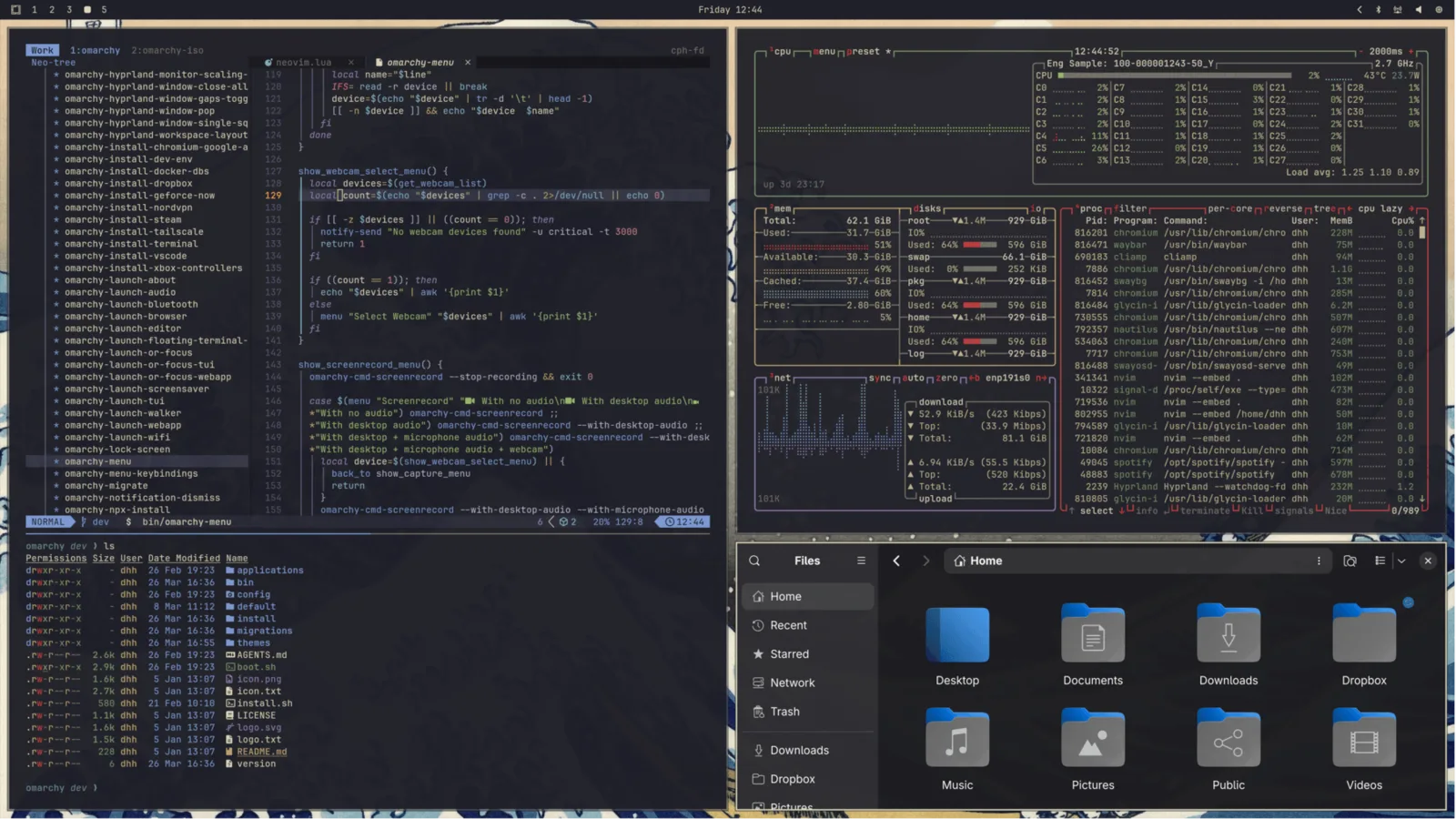
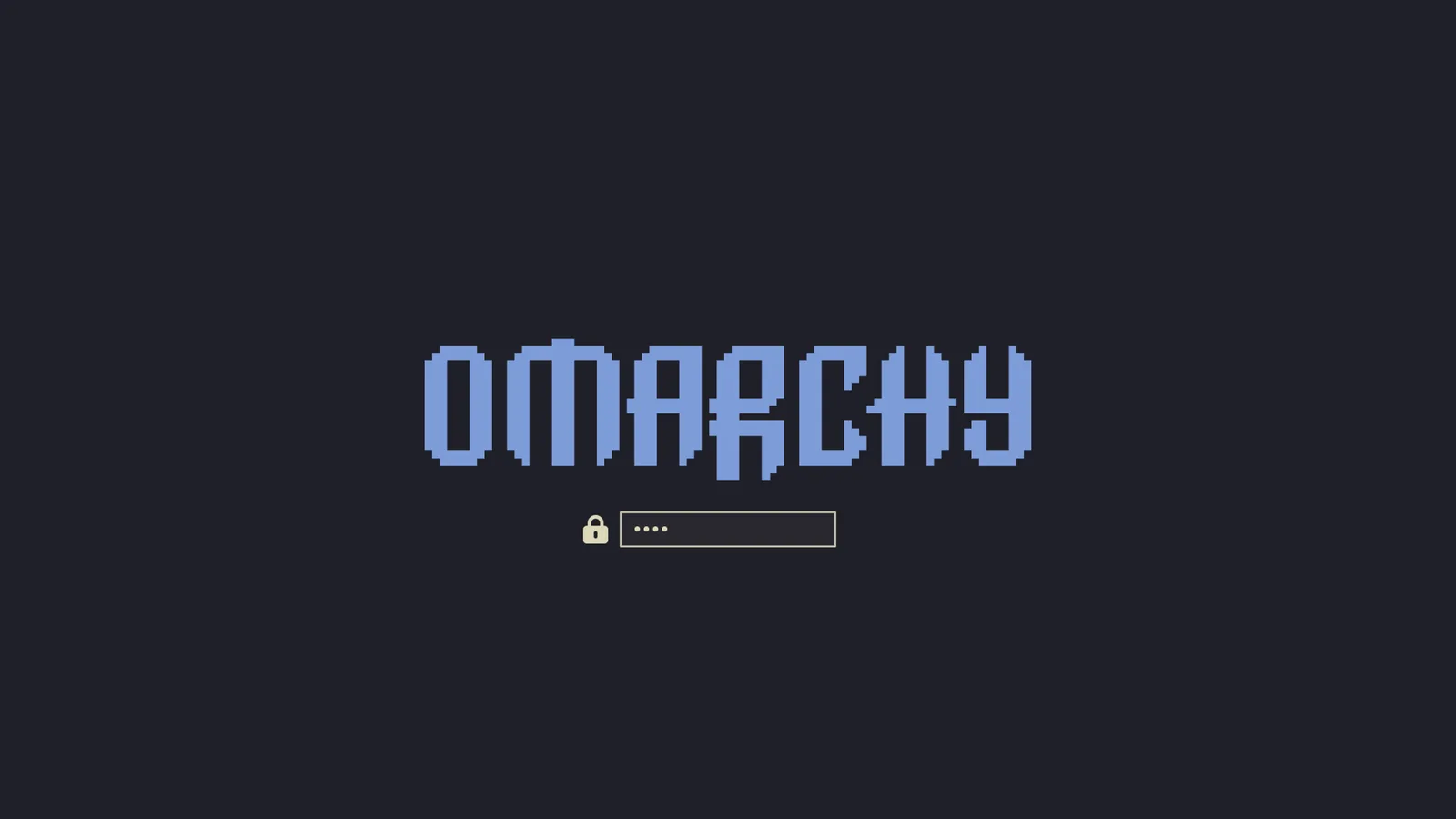
Images are from the official themes manual. The second depicts the boot unlock surface, separate from the desktop lock screen. Use the gallery for comparison and do not infer your editor’s exact highlight settings from a desktop screenshot.
The bundled desktop is a specific palette
Section titled “The bundled desktop is a specific palette”| Role | Pinned value | What to observe |
|---|---|---|
| Background | #1f1f28 |
Main ink-like dark surface |
| Foreground | #dcd7ba |
Pale warm ordinary text |
| Accent | #dcd7ba |
Same stored value as foreground; consumer styling still matters |
| Selection | #363646 |
Selected surface distinct from the main background |
| Muted | #54546D |
Low-emphasis token, not a universal comment color |
The Omarchy palette and Neovim integration answer different questions. The latter declares rebelot/kanagawa.nvim and selects kanagawa; it does not explicitly make every upstream variant a desktop selection.
A matching accent/foreground value is not necessarily an error. A consumer may communicate emphasis with shape, weight, border or position too. Assess what the rendered controls actually show before modifying the token.
Try a focus and search exercise
Section titled “Try a focus and search exercise”Select Style → Theme → Kanagawa, or omarchy-theme-set kanagawa in the pinned command set. Open two terminal windows with different directories and one editor. Keep a quiet wallpaper and the usual opacity.
- Switch between terminals and identify the active window before typing.
- In the editor, search for a word appearing several times. Compare the current match with other matches.
- Select a line containing a match. Confirm that selection and search are still distinguishable.
- Open a menu and move through entries. Inspect how the selected item is communicated.
This deliberately tests states rather than judging only the main text/background pair. If one state is unclear, record the specific surface. A shell menu, terminal selection and editor search match can use different generated colors and styling.
Editor variants: a useful experiment with a clear boundary
Section titled “Editor variants: a useful experiment with a clear boundary”In Neovim inspect :colorscheme and :set background?. If the installed upstream plugin exposes its documented variant commands, you can compare :colorscheme kanagawa-wave, :colorscheme kanagawa-dragon or :colorscheme kanagawa-lotus inside that editor. Save work first and check the plugin version if a command is unavailable.
Treat this as a temporary editor comparison. It changes the editor’s active colorscheme, not the shell, wallpaper or terminal. A later editor restart or desktop theme activation may restore the configured choice. Only make a permanent variant choice in your personal editor setup after checking that the theme integration will not override it. Use the upstream port’s documentation for plugin options rather than transplanting a config from another Kanagawa port.
Diagnose “Kanagawa is not matching”
Section titled “Diagnose “Kanagawa is not matching””| Observation | First distinction |
|---|---|
| Editor is light, desktop dark | A Lotus/editor background choice can be intentional |
| Desktop/terminal differ from these values | Check release and omarchy-theme-dir kanagawa for a personal source |
| Main text matches, search highlights differ | Editor highlight groups are separate from the terminal palette |
| Old window differs from a new window | Investigate reload/consumption before replacing palette files |
| Background picture differs | Wallpaper selection is separate from palette identity |
Follow application theming for a generation trace. Do not install a similarly named community theme just to fix a personal editor variant.
Choose and retain a recoverable result
Section titled “Choose and retain a recoverable result”Compare this exercise with Catppuccin or Everforest, using the same brightness and scale. If you prefer Kanagawa but want stronger focus indication, investigate that surface’s personal styling rather than replacing all text colors.
Return to your recorded previous theme to undo the desktop choice. Restore any personal editor file you changed to undo a persistent variant experiment. Generated files under ~/.local/state/omarchy/current/theme/ are not the permanent editing layer in this snapshot. The goal is a theme whose important states you can recognize, with a clear explanation of any intentional app differences.